Moving My Blog from Bluehost/WordPress to GitHub Pages with Astro and Cloudflare

This blog has lived on Bluehost, running WordPress, for years. I really liked Bluehost performance and how stable it was. There was however two big problems on hosting blog there:
- It was expensive. I think I paid like almost 20€/month for having a blog there. That is not a small money for website that doesn’t earn me anything as I want to keep all my content free. I am already paying 200€/year for meetup license, so having another 240€ for blog was just too much.
- It does not support AI. I had few plugins that I could have use for generating SEO texts or titles for my posts, but they would cost me more money. Also I could not bring my favorite AI tools into that platform (GH Copilot and Claude Code), so it was time to dump the Wordpress.
I think the years of Wordpress dominating blogs are far behind. It is just too heavy and too hard for AI tools to work with.
Recently I decided to move everything over to a static site built with Astro, hosted for free on GitHub Pages, with Cloudflare managing DNS (and the domain registration itself, mid-transfer as I write this). This post is a log of that whole migration, in the order it actually happened: building the Astro site itself, migrating 124 old posts with a Python script, rescuing one still-unpublished draft straight out of a WordPress database export, wiring up the custom domain, and finally chasing down a DNS caching mystery on my own machine. I think it took like 4 hours to do the full migration.
Step 1: Building the Astro Site
Before any of the domain or migration work, the new site had to exist. I scaffolded a plain folder structure first (layouts, components, pages, content collections), then configured Astro’s routing to match my existing WordPress permalink structure, /:year/:month/:day/:slug/, so old links wouldn’t break once the domain moved over.
Content lives in a blog collection defined in src/content.config.ts, loading every Markdown file under src/content/blog/ and validating its frontmatter (title, date, tags, optional image) with a Zod schema.
I ported the dark theme from the old WordPress site (a customized Neve theme) over to Astro, tightened up a few things I never liked (the quote block was oversized, code blocks had too much line spacing), and built the actual components: Header, Footer, PostCard, Pagination, and a BlogPost layout. A sample post with an image, code block, quote, and multiple heading levels was useful early on just to see the whole theme rendering end to end before any real content existed.
Step 2: Migrating 124 Posts with a Python Script
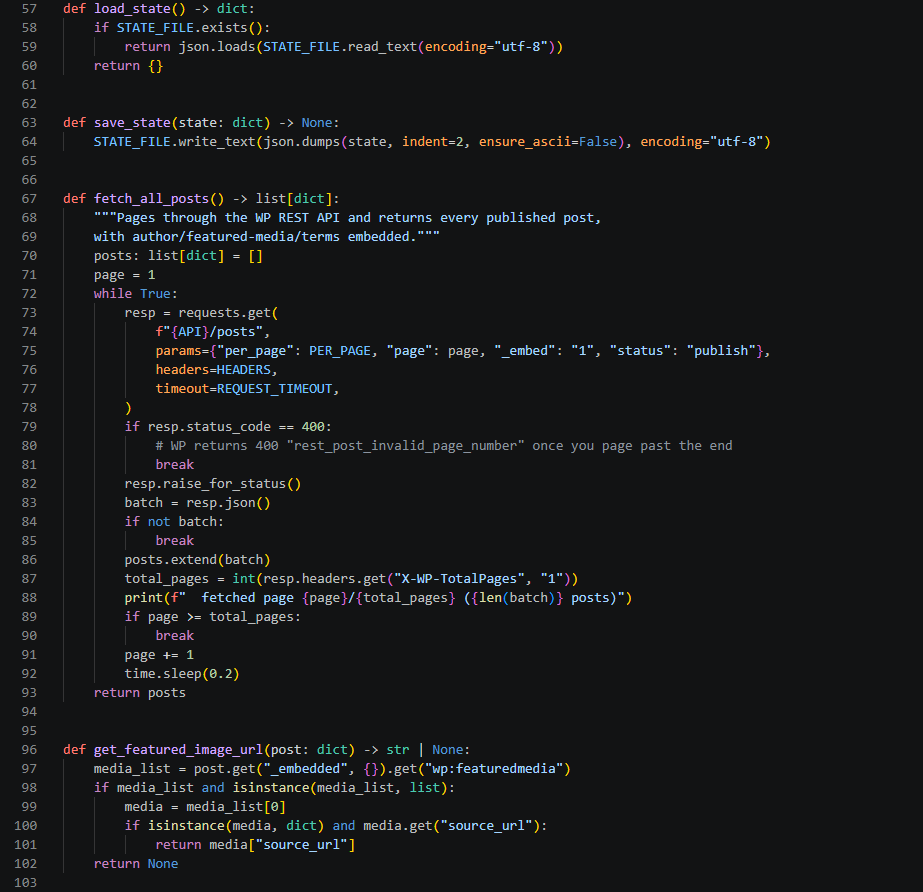
With the new site’s shape in place, the bulk of the actual content migration was a Python script, not a database export. Since the old blog was still live at https://oksala.net, the script simply walked the public WordPress REST API (/wp-json/wp/v2/posts) and, for every post:
- Downloaded the post content, tags, and featured image.
- Rewrote inline images to local files under
public/images/blog/<slug>/. - Converted the WordPress HTML into Markdown matching the new site’s frontmatter shape.
- Checked outbound links and logged anything that looked broken to a report file.
Two things made this resilient rather than a one-shot gamble:
- Resumable state. Progress was written to a small JSON state file after every single post, so if the script got interrupted (or Windows decided to nap), rerunning it picked up exactly where it left off instead of starting over or duplicating work.
- A real bug, fixed along the way. One AI-generated image had such a long filename that the full destination path blew past Windows’ 260-character
MAX_PATHlimit, failing that one post. The fix was luckily easy: truncate over-long filenames and append a short hash so they stay unique, then re-run just that post.
The end result was 124 posts migrated, 0 failures, with only a single outbound link flagged as possibly broken (and that one turned out to be a false positive from a site blocking automated requests, not an actual dead link).
Once the bulk migration was in, I also cleaned up the presentation a bit, image captions (the short italic lines under photos) needed consistent styling. My first pass used an automatic CSS rule matching “the paragraph right after an image”, but that turned out to be too broad and grabbed real body text in some posts. I reverted that and instead went through the affected posts by hand, wrapping actual captions in an explicit <p class="image-caption"> tag, leaving genuine paragraphs alone.
Step 3: Rescuing the One Post That Wasn’t Public Yet
The REST API only exposes published content, so the one post still sitting as a draft, part two of a “Fabric Apps” series I’d started, wasn’t reachable that way. I really liked that post, so I didn’t want to spend another hour rewriting it.
I had already earlier dumped the SQL database out from the server in case I had some problems in my migration. I decided to use that dump
for that single post. I went back to a raw WordPress SQL export (localhost.sql, table prefix _PGB_) and pulled it out manually (well wrote console app for it…):
- Located the
_PGB_poststable and searched for rows withpost_status = 'draft'. - Confirmed the right row by title (“part two” of the Fabric Apps series) and post ID.
- Parsed the raw SQL tuple by hand (respecting backslash-escaped quotes) to unescape the
post_contentfield back into real HTML, since mysqldump stores it as one long escaped string on a single line. - Cross-referenced the post’s tags and attached images from the same export.
- Converted the WordPress block markup into Markdown matching the rest of the site, and copied over the three inline images plus a featured image once that was ready.
That’s the only post in the whole migration that came from a database export rather than the API, everything else went through the Python script above. It’s also a good illustration of a difference from WordPress worth calling out: Astro’s content collections have no draft concept. The moment a post file is committed to main, the next deploy publishes it, live. There’s no toggle to keep something half-written but still building.
Step 4: Pointing Astro at the Custom Domain
With content in place, the site needed to serve from oksala.net instead of the default panuoksala.github.io. Three small changes did it:
- A
public/CNAMEfile containing just the domain, since Astro copies everything underpublic/straight intodist/on build:
oksala.net- Updating
astro.config.mjsso the site’s canonical URL matches the custom domain:
export default defineConfig({
-    site: 'https://panuoksala.github.io',
+    site: 'https://oksala.net',
});- Updating domain into GitHub repository settings as Custom domain.
Deployment itself runs through a GitHub Actions workflow (.github/workflows/deploy.yml) using actions/configure-pages, withastro/action, and actions/deploy-pages to build and publish dist/ on every push to main.
Step 5: Cloudflare and the DNS Records
Before touching DNS I installed the official Cloudflare skill (cloudflare/skills@cloudflare) for solid, up-to-date guidance, and checked where oksala.net currently pointed. The SOA record already showed Cloudflare’s nameservers, meaning DNS was already delegated there even though the domain was still registered at Bluehost, DNS host and domain registrar are two independent things, and that separation mattered a lot later.
oksala.net‘s zone existed on Cloudflare but was sitting on Cloudflare’s own placeholder IPs. The fix was replacing those with GitHub Pages’ published addresses:
| Type | Name | Content | Proxy |
|---|---|---|---|
| A | @ | 185.199.108.153 | DNS only |
| A | @ | 185.199.109.153 | DNS only |
| A | @ | 185.199.110.153 | DNS only |
| A | @ | 185.199.111.153 | DNS only |
| AAAA | @ | 2606:50c0:8000::153 | DNS only |
| AAAA | @ | 2606:50c0:8001::153 | DNS only |
| AAAA | @ | 2606:50c0:8002::153 | DNS only |
| AAAA | @ | 2606:50c0:8003::153 | DNS only |
| CNAME | www | panuoksala.github.io | DNS only |
The important detail is DNS only (grey cloud, not proxied). GitHub Pages needs a direct line to the visitor to issue its own HTTPS certificate; a Cloudflare-proxied record in front of that can block certificate validation. Once GitHub’s certificate is live, this can optionally be flipped back to proxied, as long as Cloudflare’s SSL/TLS mode is Full (strict), to avoid redirect loops.
On the GitHub side, the repo’s Settings → Pages → Custom domain field was set to oksala.net to match the CNAME file, then Enforce HTTPS once the certificate was actually issued.
Step 6: Registrar Transfer, in Parallel
Around the same time, I requested the domain registrar transfer from Bluehost to Cloudflare. The natural question was whether it was safe to touch DNS records while that transfer was pending. Since the nameservers were already Cloudflare’s, and registrar transfers operate at the registry/EPP level rather than touching zone records, editing A/AAAA/CNAME records had zero effect on the pending transfer, and vice versa. The one thing to avoid was changing nameserver settings back at Bluehost while the transfer was in flight.
Step 7: Chasing a DNS Caching Ghost
After the DNS records were updated, GitHub Pages still reported the domain as “incorrectly configured” for a while, and a plain browser request to https://oksala.net was still returning the old WordPress site. That looked alarming until a resolver-by-resolver comparison sorted it out: Cloudflare’s own 1.1.1.1, Google’s 8.8.8.8, and the plain Windows DNS client all already showed the correct GitHub IPs.
The actual Cloudflare configuration was correct the whole time; it was purely a local caching artifact on one specific network path. The lesson: It is always about the DNS.
Summary
End state: a static Astro blog with all 124 old posts migrated (plus one rescued draft), deployed automatically by GitHub Actions on every push to main, hosted for free on GitHub Pages, on my own domain, with Cloudflare handling DNS and, soon, the registration itself. The trickiest parts weren’t the hosting setup, they were the bulk content migration edge cases and the DNS propagation quirks at the very end. Both turned out to be very solvable with the right combination of Python, PowerShell, and patience.