Event Driven Azure Container App Jobs

In my previous blog post I wrote about Container App Jobs and how to run them on scheduled manner. This time, we’ll explore how to run Container App Jobs in response to events. The Jobs supports KEDA scaling to trigger the job, which means that it can be triggered from Azure Service Bus messages, Blob Storage queue events etc. There are lots of options, but in this post we are going to use the good old Azure Service Bus. We will set up a job that triggers when the system receives new messages and scales out if the queue grows long enough.
Create New Job
First lets start by creating a new Azure Container App Job. The process is similar as doing the scheduled job, but this time we will select Event-driven as trigger type.
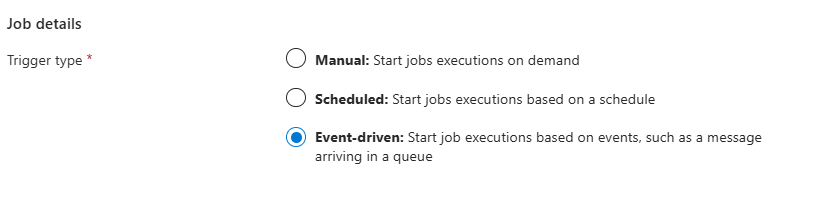
Then at Scale Rules we will add new Azure Service Bus (queue) type of rule. For this rule we need to define few settings:
- messageCount how many messages in the queue will scale out (launch new instances). The job will trigger with one message, but it won’t scale out if the queue is short enough.
- namespace defines the service bus name that is used for listening messages.
- queuName is well… the queue name. We need to define this OR topicName & subscriptionName.
You can find the list of all parameters from this KEDA documentation page.
After setting scale rule fill out the image details, environment settings (create new or use existing) and create the job. We didn’t define any access key when doing the job, so how can the job read messages from queue? Well the answer is that it cannot. If we check job logs after the job is created we can see lots of “error parsing azure service bus metadata: no connection setting given” error messages. This is because we didn’t define the access key or any authentication method.
As we don’t want to use any keys to access the Service Bus we can go and edit the scale parameters and set it to use Managed Identity in authentication. Open the event-driven scaling settings for job.
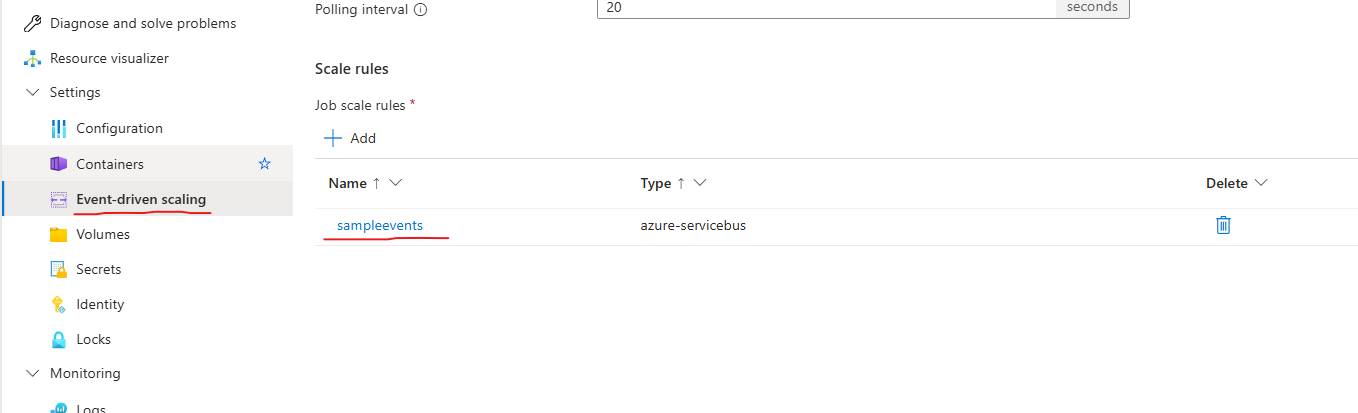
Under Settings click Event-driven scaling and select the job to edit scale parameters.
Under Managed Identity section check the “Authenticate with a Managed Identity“ option. This will use the Container App Job identity for KEDA scaler trigger polling. Make sure that you have created the identity from Identity configuration page and don’t forget to add the IAM permissions for this managed identity into Service Bus. For IAM you can use Azure Service Bus Data roles.
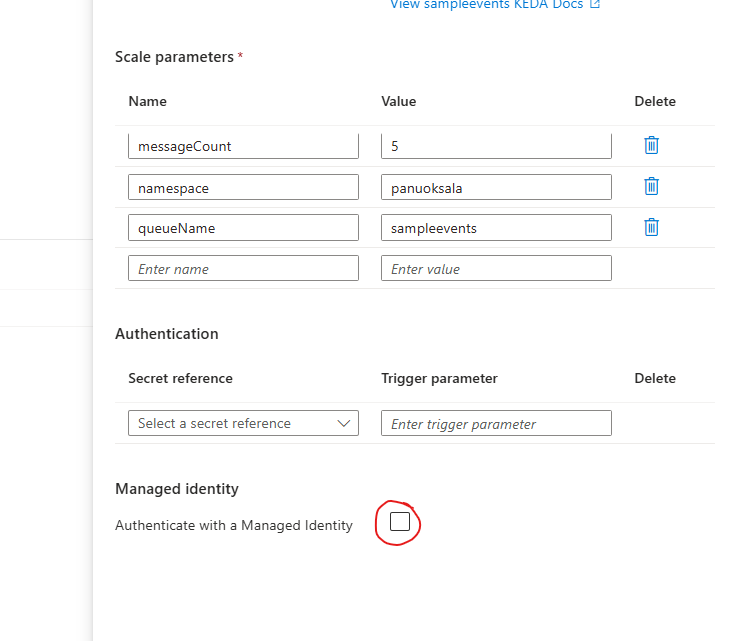
I don’t know why this option is not visible when we are creating new job, but it can be set after job is successfully created.
If everything is setup correctly the error message about connection setting should not appear anymore into logs. We can test our new job by manually sending a message into the Service Bus through the Azure Portal and verifying that our job triggers.
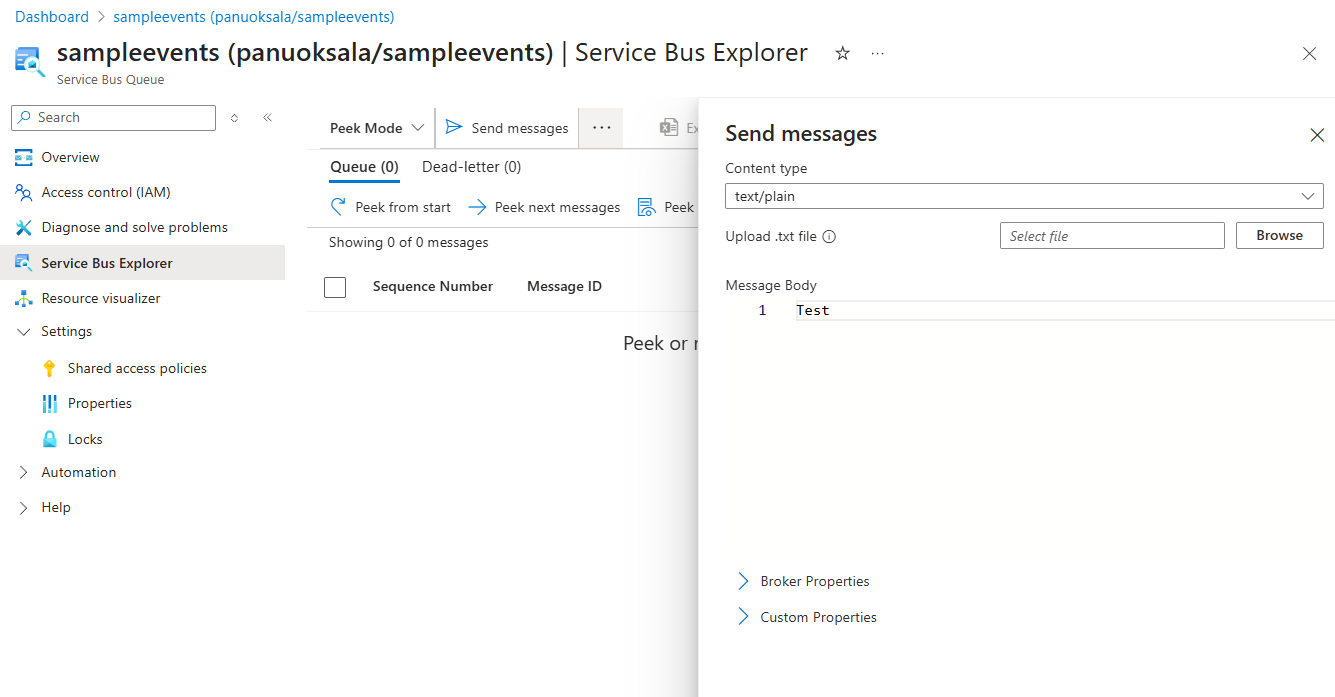
Send simple test message through Azure Portal to test that Job is triggering.
KEDA Scaler
The job should trigger now every 20 seconds (default polling value), but why it keeps triggering over and over again even though we sent just one event? That is an excellent question. The app is triggered by KEDA scaler, which does not read the message from queue. It just uses peek to detect that there is a message waiting for handling and kicks out new container job to handle the message. In our Container App Job we need to manually read the message from queue and handle it. As the triggering is happening in KEDA level (inside Azure), we cannot pass the message into Container App Job or remove it from queue automatically. Triggering operation is completely separated from our app.
I personally think that this model is a bit complicated as it leads easily into duplicating Service Bus connection details for KEDA and for the job itself. One way to avoid duplicating could be to set environment variable in IaC with the same values as the KEDA scaler is setup. This way our app could read the environment variable that is created for the job and we could use the same value in IaC to setup the scaler.
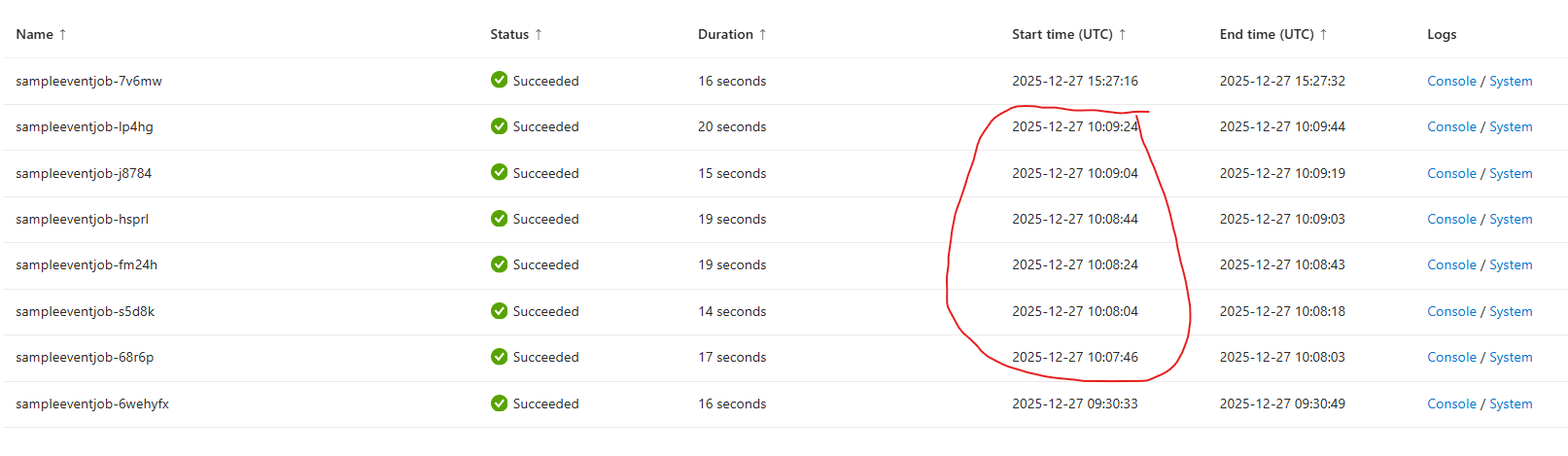
If everything is correctly done the Job should be triggered by given polling interval. 20 seconds is the default.
Reading the Message
For demonstration purposes I wrote simple app, that reads the message from Service Bus and prints the message content into console. I used Azure.Identity and Azure.Messaging.ServiceBus libraries. Just remember to delete the message (Complete manually or set AutoCompleteMessages to true) from queue after handling it, so that your job doesn’t get triggered multiple times for same message.
using Azure.Identity;
using Azure.Messaging.ServiceBus;

var fullyQualifiedNamespace = Environment.GetEnvironmentVariable("SERVICEBUS_NAMESPACE");
var queueName = Environment.GetEnvironmentVariable("QUEUE_NAME");

var credential = new DefaultAzureCredential(); // Use Managed Identity

await using var client = new ServiceBusClient(fullyQualifiedNamespace, credential);
await using var processor = client.CreateProcessor(queueName, new ServiceBusProcessorOptions
{
    AutoCompleteMessages = false
});

// Signal to keep the app running until a message is processed
var processingComplete = new TaskCompletionSource<bool>(TaskCreationOptions.RunContinuationsAsynchronously);

Console.WriteLine($"Receiving message from queue {queueName}.");

processor.ProcessMessageAsync += async args =>
{
    Console.WriteLine($"MessageId: {args.Message.MessageId}");
    Console.WriteLine($"Content: {args.Message.Body}");

    await args.CompleteMessageAsync(args.Message, args.CancellationToken);

    // Signal that work is done so the app can exit
    processingComplete.TrySetResult(true);
};

processor.ProcessErrorAsync += args =>
{
    Console.WriteLine($"Error: {args.Exception.Message}");
    processingComplete.TrySetException(args.Exception);
    return Task.CompletedTask;
};

// Start the processor
Console.WriteLine("Starting processor...");
await processor.StartProcessingAsync();

try
{
    // Wait for the message to be processed (with a 60s safety timeout)
    // This prevents the app from exiting immediately
    await processingComplete.Task.WaitAsync(TimeSpan.FromSeconds(60));
}
catch (TimeoutException)
{
    Console.WriteLine("No message received within the timeout period.");
}
finally
{
    await processor.StopProcessingAsync();
}
As it can take some time for Azure to authenticate and open message to Service Bus don’t try to squeeze the processing timeout into too small value. I prefer 30 or 60 seconds, but usually the connection should open under 10 seconds.
After publishing the app image into container registry and waiting for few seconds for container app job to fetch it, we should see that the app is handling the message from queue. Open Container App Jobs Execution History from Azure Portal and click the console link for latest execution to see the execution log.

Sample app printed the message content successfully and handled the message.
Summary
To be honest I don’t like the event driven triggering as much as I liked the scheduling jobs. Setting up KEDA scaler feels little clunky and the UI side doesn’t seems to work very well at the moment. Of course if you are using Azure Cli or Power Shell to setup the Job then UI problems doesn’t bother you much. Still having the KEDA scaler completely separated from the actual implementation feels bit complicated. In Azure Functions we can define the trigger easily above the function definition, which makes it easier to maintain as all the information is closer to the app implementation. Of course we will have all the complexity of the functions when app is locally run, but still it is easier to setup and maintain.
I understand that we want to keep Container App Jobs as simple executable files, which don’t know about the outside world, but I still think we will need a simpler way to connect the scaler with job implementation.
Lastly I want to raise out that spinning out these containers are not as fast as running the Azure Functions, so I would not use Container App Jobs to handle IoT events, or react to web shop orders. I find them more suitable for long running tasks which are triggered maybe every hour or so. They are good for tasks that requires a long running time and lots of resources.